Enable TrustaccesstotheVBAprojectobjectmodel under File>Options>TrustCenter>TrustCenterSettings>MacroSettings. You only need to do this once. Also, this is only required for importing the functions, i.e. end users won’t need to bother about this.
Install the add-in via command prompt: xlwingsaddininstall (see Add-in & Settings).
The easiest way to start a new project is to run xlwingsquickstartmyproject on a command prompt (see Command Line Client (CLI)).
This automatically adds the xlwings reference to the generated workbook.
The default addin settings expect a Python source file in the way it is created by quickstart:
in the same directory as the Excel file
with the same name as the Excel file, but with a .py ending instead of .xlsm.
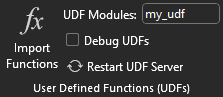
Alternatively, you can point to a specific module via UDFModules in the xlwings ribbon.
The Image below shows the correct input for the “UDF Modules” field in the xlwings ribbon with a module called “my_udf.py”:
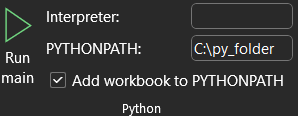
If the module is not within the same directory as the Excel file, you point to it via the “PYTHONPATH” field. The image below shows input for if the module was in a folder under “C:\py_folder” (just an example so it fits in the field window):
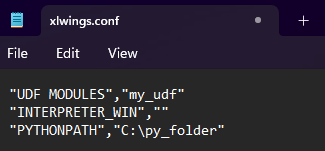
For reference, with those changes, this is how your xlwings.conf file should look:
Let’s assume you have a Workbook myproject.xlsm, then you would write the following code in myproject.py:
importxlwingsasxw@xw.funcdefdouble_sum(x,y):"""Returns twice the sum of the two arguments"""return2*(x+y)
Now click on ImportPythonUDFs in the xlwings tab to pick up the changes made to myproject.py.
Enter the formula =double_sum(1,2) into a cell and you will see the correct result:
The docstring (in triple-quotes) will be shown as function description in Excel.
Note
You only need to re-import your functions if you change the function arguments or the function name.
Code changes in the actual functions are picked up automatically (i.e. at the next calculation of the formula,
e.g. triggered by Ctrl-Alt-F9), but changes in imported modules are not. This is the very behaviour of how Python
imports work. If you want to make sure everything is in a fresh state, click RestartUDFServer.
The @xw.func decorator is only used by xlwings when the function is being imported into Excel. It tells xlwings
for which functions it should create a VBA wrapper function, otherwise it has no effect on how the functions behave
in Python.
Calling one big array formula in Excel is much more efficient than calling many single-cell formulas, so it’s generally
a good idea to use them, especially if you hit performance problems.
You can pass an Excel Range as a function argument, as opposed to a single cell and it will show up in Python as
list of lists.
For example, you can write the following function to add 1 to every cell in a Range:
Press Ctrl+Shift+Enter to create an array formula. If you did everything correctly, you’ll see the formula
surrounded by curly braces as in this screenshot:
The above formula has the issue that it expects a “two dimensional” input, e.g. a nested list of the form
[[1,2],[3,4]].
Therefore, if you would apply the formula to a single cell, you would get the following error:
TypeError:'float'objectisnotiterable.
To force Excel to always give you a two-dimensional array, no matter whether the argument is a single cell, a
column/row or a two-dimensional Range, you can extend the above formula like this:
Often, you’ll want to use NumPy arrays or Pandas DataFrames in your UDF, as this unlocks the full power of Python’s
ecosystem for scientific computing.
To define a formula for matrix multiplication using numpy arrays, you would define the following function:
If you are not on Python >= 3.5 with NumPy >= 1.10, use x.dot(y) instead of x@y.
A great example of how you can put Pandas at work is the creation of an array-based CORREL formula. Excel’s
version of CORREL only works on 2 datasets and is cumbersome to use if you want to quickly get the correlation
matrix of a few time-series, for example. Pandas makes the creation of an array-based CORREL2 formula basically
a one-liner:
importxlwingsasxwimportpandasaspd@xw.func@xw.arg('x',pd.DataFrame,index=False,header=False)@xw.ret(index=False,header=False)defCORREL2(x):"""Like CORREL, but as array formula for more than 2 data sets"""returnx.corr()
These decorators are to UDFs what the options method is to Range objects: they allow you to apply converters and their
options to function arguments (@xw.arg) and to the return value (@xw.ret). For example, to convert the argument x into
a pandas DataFrame and suppress the index when returning it, you would do the following:
@xw.func@xw.arg('x',pd.DataFrame)@xw.ret(index=False)defmyfunction(x):# x is a DataFrame, do something with itreturnx
If your version of Excel supports the new native dynamic arrays, then you don’t have to do anything special,
and you shouldn’t use the expand decorator! To check if your version of Excel supports it, see if you
have the =UNIQUE() formula available. Native dynamic arrays were introduced in Office 365 Insider Fast
at the end of September 2018.
As seen above, to use Excel’s array formulas, you need to specify their dimensions up front by selecting the
result array first, then entering the formula and finally hitting Ctrl-Shift-Enter. In practice, it often turns
out to be a cumbersome process, especially when working with dynamic arrays such as time series data.
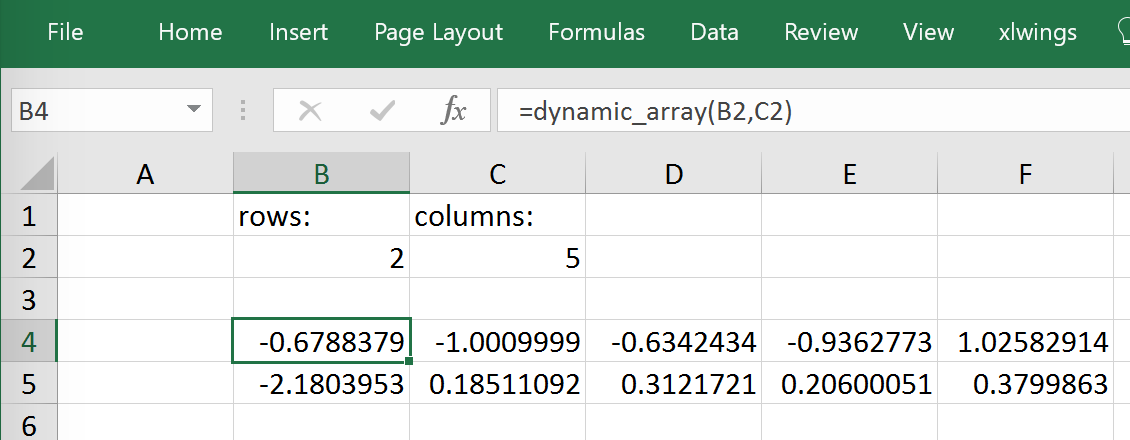
Since v0.10, xlwings offers dynamic UDF expansion:
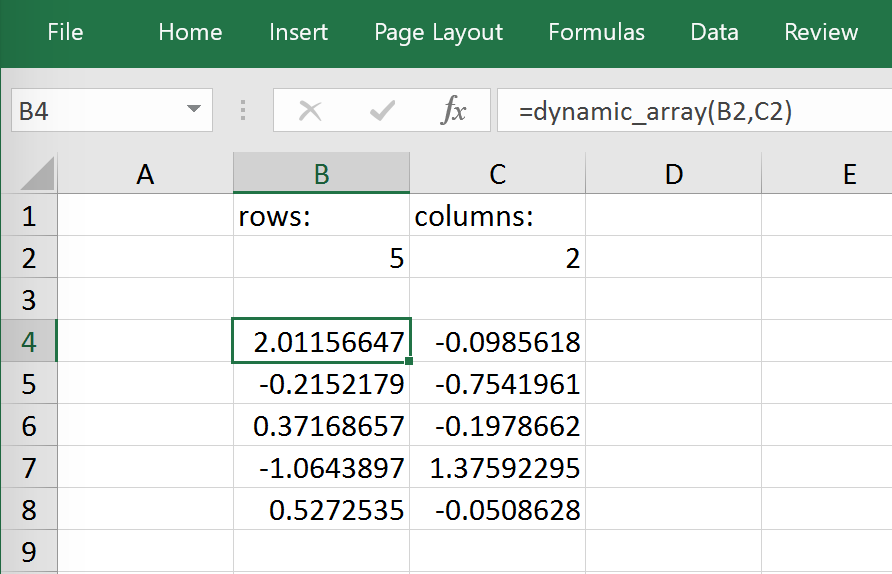
This is a simple example that demonstrates the syntax and effect of UDF expansion:
Expanding array formulas will overwrite cells without prompting
Pre v0.15.0 doesn’t allow to have volatile functions as arguments, e.g. you cannot use functions like =TODAY() as arguments.
Starting with v0.15.0, you can use volatile functions as input, but the UDF will be called more than 1x.
Dynamic Arrays have been refactored with v0.15.0 to be proper legacy arrays: To edit a dynamic array
with xlwings >= v0.15.0, you need to hit Ctrl-Shift-Enter while in the top left cell. Note that you don’t
have to do that when you enter the formula for the first time.
The following sample shows how to include docstrings both for the function and for the arguments x and y that then
show up in the function wizard in Excel:
importxlwingsasxw@xw.func@xw.arg('x',doc='This is x.')@xw.arg('y',doc='This is y.')defdouble_sum(x,y):"""Returns twice the sum of the two arguments"""return2*(x+y)
You often need to know which cell called the UDF. For this, xlwings offers the reserved argument caller which returns the calling cell as xlwings range object:
@xw.funcdefget_caller_address(caller):# caller will not be exposed in Excel, so use it like so:# =get_caller_address()returncaller.address
Note that caller will not be exposed in Excel but will be provided by xlwings behind the scenes.
By using the vba keyword, you can get access to any Excel VBA object in the form of a pywin32 object. For example, if you wanted to pass the sheet object in the form of its CodeName, you can do it as follows:
@xw.func@xw.arg('sheet1',vba='Sheet1')defget_name(sheet1):# call this function in Excel with:# =get_name()returnsheet1.Name
Note that vba arguments are not exposed in the UDF but automatically provided by xlwings.
On Windows, as an alternative to calling macros via RunPython, you can also use the @xw.sub
decorator:
importxlwingsasxw@xw.subdefmy_macro():"""Writes the name of the Workbook into Range("A1") of Sheet 1"""wb=xw.Book.caller()wb.sheets[0].range('A1').value=wb.name
After clicking on ImportPythonUDFs, you can then use this macro by executing it via Alt+F8 or by
binding it e.g. to a button. To do the latter, make sure you have the Developer tab selected under File>Options>CustomizeRibbon. Then, under the Developer tab, you can insert a button via Insert>FormControls.
After drawing the button, you will be prompted to assign a macro to it and you can select my_macro.
xlwings offers an easy way to write asynchronous functions in Excel. Asynchronous functions return immediately with
#N/Awaiting.... While the function is waiting for its return value, you can use Excel to do other stuff and whenever
the return value is available, the cell value will be updated.
The only available mode is currently async_mode='threading', meaning that it’s useful for I/O-bound tasks, for example when
you fetch data from an API over the web.
You make a function asynchronous simply by giving it the respective argument in the function decorator. In this example,
the time consuming I/O-bound task is simulated by using time.sleep:
importxlwingsasxwimporttime@xw.func(async_mode='threading')defmyfunction(a):time.sleep(5)# long running tasksreturna
You can use this function like any other xlwings function, simply by putting =myfunction("abcd") into a cell
(after you have imported the function, of course).
Note that xlwings doesn’t use the native asynchronous functions that were introduced with Excel 2010, so xlwings
asynchronous functions are supported with any version of Excel.